Automate Document Data Processing in Power Platform
Learn how to build invoice processing workflows with AI Builder and Power Automate, validate extracted data, and handle exceptions with human review.


Yashwanth S
Power Platform Developer


Scenario: A finance team receives PDF invoices from many suppliers. The goal is not only to extract fields, but to prevent uncertain or invalid invoice data from reaching downstream finance systems.

The challenge we are solving
AI Builder can extract invoice data, but enterprise processing becomes difficult when invoices arrive in different layouts, required values are missing, extracted values are uncertain, or a perfectly extracted value still violates a finance rule. The implementation therefore needs a controlled path from email intake to trusted business data.
Core design principle: AI Builder reads the invoice. Power Automate decides what happens next. Dataverse keeps processing state and audit information. Power Apps handles the exceptions that require a person.
Example used throughout this implementation
| Field | Example value |
|---|---|
| Vendor | ABC Steel Inc. |
| Invoice Number | INV-4589 |
| PO Number | PO-10234 |
| Subtotal | $9,500 |
| Tax | $760 |
| Invoice Total | $10,260 |
| Expected PO Amount | $9,800 |
The intentional exception is important: AI Builder may correctly read the invoice total as $10,260, but the business rule still fails because the invoice exceeds the expected PO amount of $9,800. That is a business-validation exception, not necessarily an AI extraction failure.
Step 1 — Receive the invoice and create a processing record
Create an automated cloud flow for the invoice mailbox. A typical Outlook trigger is “When a new email arrives (V3)”. Restrict the trigger or the first validation step so the flow only processes messages that contain supported invoice attachments.
Power Automate implementation
-
Trigger: Outlook — When a new email arrives (V3).
-
Retrieve the PDF attachment content using the appropriate Outlook attachment action for the trigger design.
-
Create an Invoice Processing row in Dataverse with Status = Received.
-
When processing starts, update Status = Processing.
Why create the Dataverse row before AI extraction? Because the invoice now has a durable processing identity even if AI Builder or another connector later fails. Operations can see that the invoice arrived and where processing stopped.
Step 2 — Determine the processing route
Do not interpret “identify vendor/document type” as a requirement to understand the whole invoice before extraction. The practical purpose is to choose the extraction route. Use information already available before AI Builder when it is reliable enough.
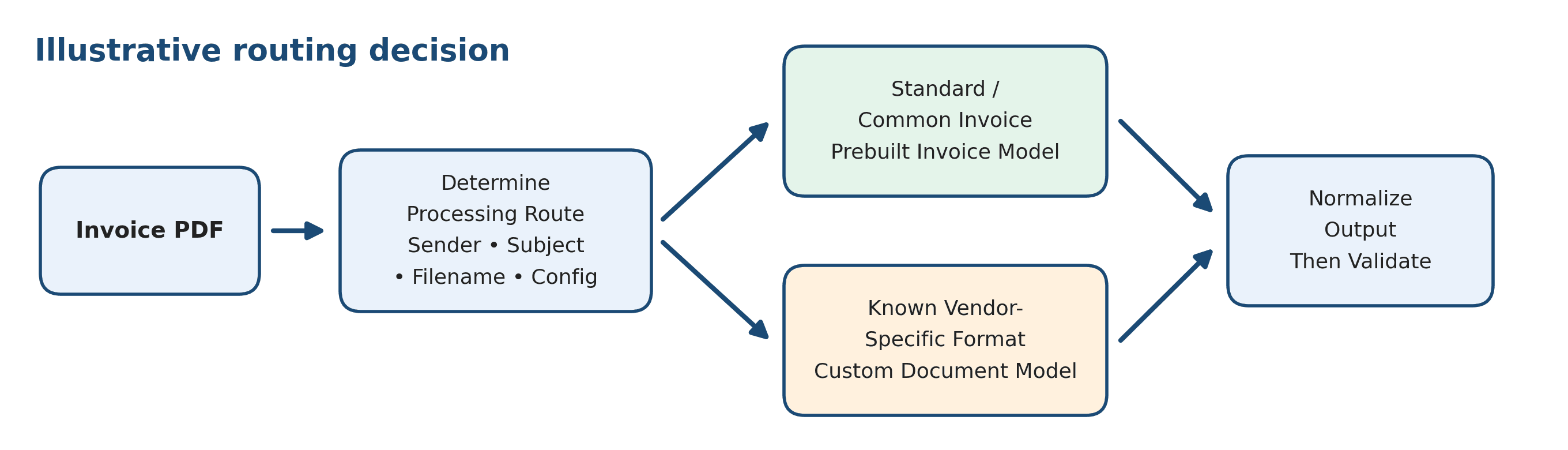
What can the routing decision use?
| Signal | Example | How it helps |
|---|---|---|
| Sender/domain | billing@abcsteel.com | Known supplier or known special route |
| Email subject | Invoice INV-45891 | Basic document-type hint |
| Attachment filename | ABCSteel_INV45891.pdf | Known filename pattern |
| Configuration | Vendor route = Custom | Avoid hard-coding routing rules in the flow |
Example: if Special Metals is a known supplier whose layout needs a custom document-processing model, a Switch or Condition can route that supplier to the custom model. All ordinary invoices can use the prebuilt Invoice Processing model. For a small implementation, start with the prebuilt model and introduce custom routing only for proven exceptions.
Step 3 — Extract invoice information with AI Builder
For standard invoices, use the AI Builder prebuilt Invoice Processing capability. In Power Automate, pass the PDF file content into the invoice-processing action available in the environment. Use the actual dynamic content returned by that action rather than assuming field names.
Typical information to use
-
Vendor / supplier information
-
Invoice number and invoice date
-
Purchase order number when available
-
Subtotal, tax, total and currency
-
Line items where the downstream process needs them
-
Confidence information when the selected action exposes it
Do not use OCR alone for this scenario unless the requirement is only raw text. Invoice Processing is intended to return structured invoice information; OCR primarily returns recognized text.
Step 4 — Normalize and store the extracted data
Map the AI Builder outputs into Dataverse. Keeping a stable business schema means downstream validation does not need to know whether a value came from the prebuilt model, a custom model, or a corrected human-review value.
| Dataverse column | Example |
|---|---|
| Vendor Name | ABC Steel Inc. |
| Invoice Number | INV-45891 |
| Invoice Date | 09/10/2026 |
| PO Number | PO-10234 |
| Subtotal | 9500 |
| Tax | 760 |
| Invoice Total | 10260 |
| Currency | USD |
| Status | Processing |
| Review Required | No |
If line-level processing is required, use a related Invoice Line table rather than forcing all line items into the header record.
Step 5 — Validate what AI Builder extracted
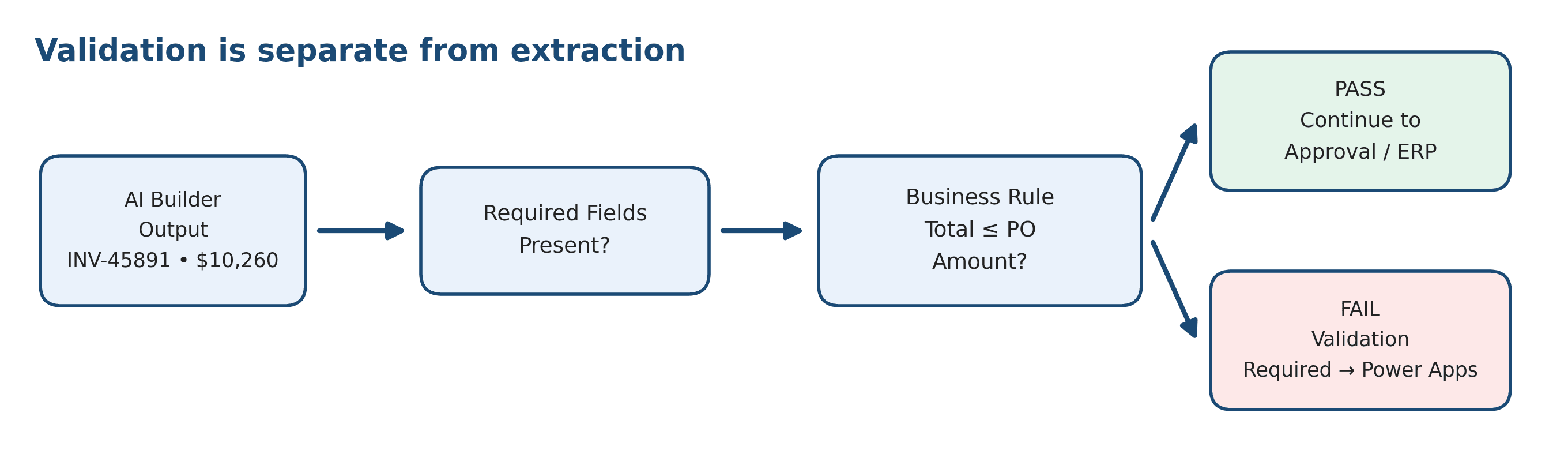
This is the key implementation step. Extraction and validation are different responsibilities. A value can be extracted correctly and still be invalid for the business process.
1.Required-field validation
Use Power Automate Conditions to check the fields required by your finance process. For example: Vendor exists, Invoice Number exists, Invoice Total exists, and PO Number exists when the business process requires a PO.
2.Confidence validation
If the selected AI Builder action exposes useful confidence information, apply a threshold to important fields. Do not invent a confidence field if the action in your environment does not provide one. A low-confidence critical value should normally move to review instead of straight-through processing.
3. Business validation
Now apply finance rules independently of AI confidence. In our example, compare Invoice Total with Expected PO Amount. AI Builder returns $10,260 and the expected PO amount is $9,800. The extraction may be correct, but the rule fails, so Power Automate sets Status = Validation Required, Review Required = Yes, and Validation Reason = “Invoice total exceeds expected PO amount.”
This distinction matters: do not retrain an AI model to solve a business-rule failure. Change the validation rule or route the invoice for review.
Step 6 — Send only exceptions to human review
A finance user should not need to review every invoice. Power Apps becomes the exception workspace for invoices that are missing required data, have uncertain critical values, or fail a business rule.
Suggested Power Apps review screen
| Review area | What the user sees |
|---|---|
| Document | Original invoice PDF where supported by the app design |
| Extracted data | Vendor, invoice number, PO, tax and total |
| Validation | Reason the invoice was stopped |
| Correction | Editable fields that the reviewer is allowed to change |
| Audit | Reviewed By and Reviewed Date captured on submit |
After the user confirms or corrects the data, update the Dataverse record to Status = Reviewed and save the corrected values. Processing can then resume through a separate flow, child flow, or status-driven orchestration pattern depending on the implementation.
Step 7 — Continue to approval or ERP integration
Only validated data should move downstream. The demo does not need a live ERP integration. Represent the downstream step as Approval / ERP Integration. In a real implementation, use the supported connector or API for the target finance system and update the Dataverse record to Completed only after the downstream operation succeeds.
Step 8 — Handle technical failures differently
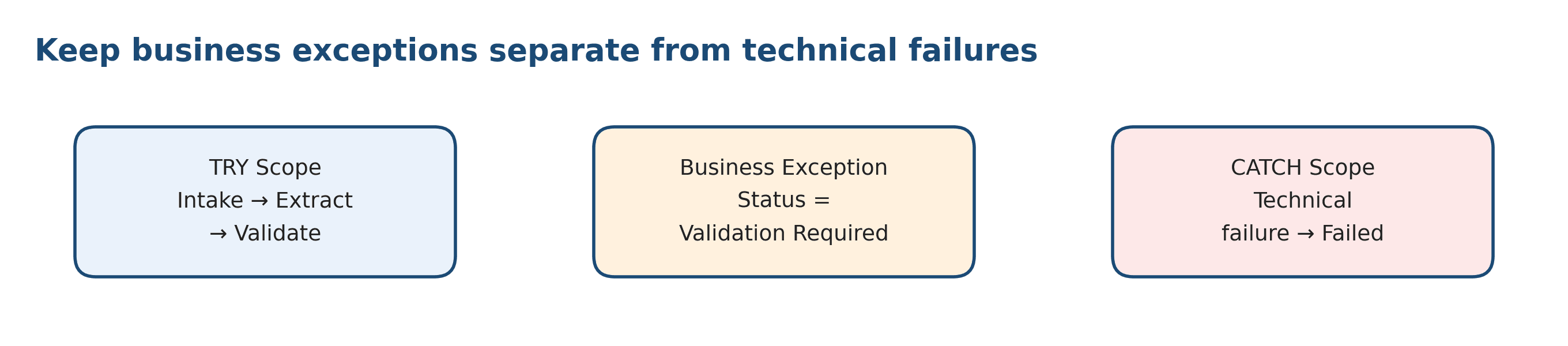
Use Scopes and Configure run after to separate the normal processing path from technical error handling. Temporary connector failures, timeouts, or unavailable services should enter a technical failure path. A missing PO or amount mismatch is a business exception and should remain visible as Validation Required rather than Failed.
| Situation | Recommended status/path |
|---|---|
| Missing required PO | Validation Required → Human Review |
| Invoice total exceeds PO | Validation Required → Human Review |
| Low-confidence critical field | Validation Required → Human Review |
| Duplicate invoice | Duplicate / controlled exception |
| AI Builder or connector timeout | Technical retry / Failed if retries are exhausted |
| Validated and downstream update succeeds | Completed |
End-to-end Power Automate blueprint
-
When a new email arrives (V3)
-
Get PDF attachment content
-
Add Dataverse processing row — Received
-
Update status — Processing
-
Condition / Switch — Determine processing route
-
AI Builder — Invoice Processing
-
Update Dataverse with extracted values
-
Condition — Required fields
-
Condition — Confidence where available
-
Condition — Business rules / duplicate check
-
PASS → Approval / ERP → Completed
-
FAIL → Validation Required → Power Apps Review → Resume
-
CATCH → Log technical error → Failed / Retry
Two tests that prove the design
Test A — Straight-through invoice
Email arrives → PDF is extracted → required fields are present → validation passes → downstream processing succeeds → Status = Completed.
Test B — Business exception
Email arrives → AI Builder extracts Invoice Total = $10,260 → Expected PO Amount = $9,800 → business validation fails → Status = Validation Required → finance user reviews/corrects → Status = Reviewed → processing resumes → Status = Completed.
Production considerations
-
Keep extraction logic separate from business validation so finance rules can change without retraining the model.
-
Use Dataverse status values to make the invoice lifecycle visible and recoverable.
-
Avoid hard-coded vendor routing when a configuration table is more maintainable.
-
Design duplicate detection before downstream posting.
-
Use least-privilege security, Dataverse roles and DLP policies for invoice data.
-
Plan AI Builder / Copilot Credit capacity before scaling.
-
Use retry policies for transient technical failures, but do not retry genuine business exceptions forever.
Final takeaway
The enterprise challenge is not simply extracting fields from a PDF. The challenge is deciding when extracted information is safe to trust, when a business rule should stop processing, and how a finance user can resolve the exception without breaking the automation. A practical Power Platform design uses AI Builder for document understanding, Power Automate for orchestration and validation, Dataverse for state and auditability, and Power Apps for targeted human review.